[BETA USER ONLY] Compliance Center Overview
Last updated: November 10, 2026
The Compliance Center is currently in Beta. If you do not see it in your settings yet, you will once it is fully released.
The Compliance Center lets you turn the paper forms and manifests your drivers fill out today into digital workflows. Upload the PDF you already use, and your techs complete it on their phones. You may also know this as custom forms or digital manifests.
Drivers will need to download and set up the new ServiceCore Mobile App in order to complete digital workflows. Workflow templates you create will not appear on jobs if the driver is using our old app.
When the job is done, the finished PDF is attached to the job. No printing, no retyping, and no chasing down paperwork at the end of the day.
The Compliance Center is in beta, which means this is the first version of the feature, and we’re still building it out. Your feedback helps shape what comes next.
How it Works
The Compliance Center lets you decide what data your drivers collect and keeps every record organized in one place. Set up a workflow template, let your techs capture the data on the job, and everything exports into a PDF stored right on the completed job.
1. Turn Your PDF into a Digital Workflow

Upload your PDF and turn it into a workflow template your technicians can complete in the field. Choose which job types it applies to and what information you need to capture. Set it up once, and every completed workflow maps the data directly onto your PDF.
2. Capture Job Data in the Field
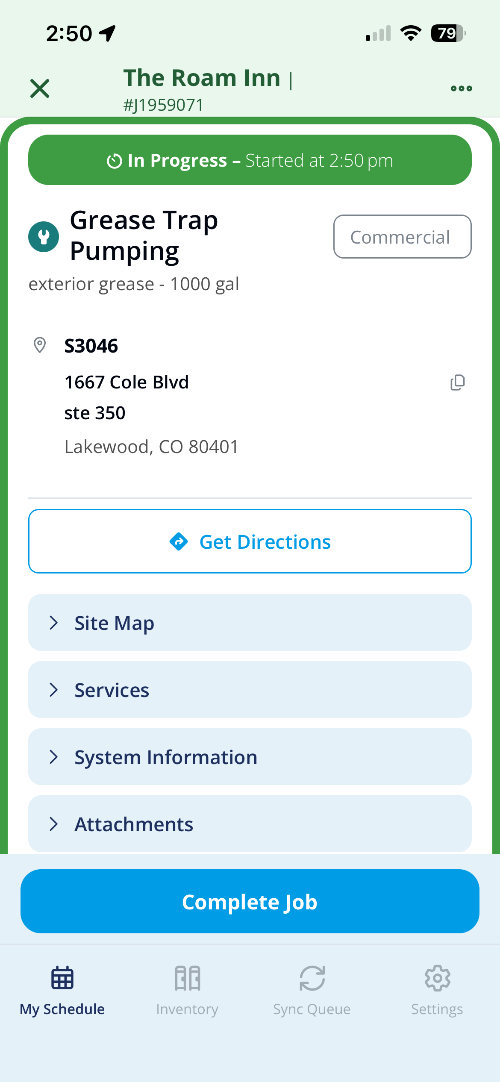
When a technician works a job with a workflow template attached, the form automatically appears in their workflow. ServiceCore pre-fills information already on file, so technicians can confirm what's there and capture only what's missing.
Drivers will need to download and set up the new ServiceCore Mobile App in order to complete digital workflows. Workflow templates you create will not appear on jobs if the driver is using our old app.
3. Data Mapped to PDF & Saved

Once the job is complete, the technician's data is mapped directly onto your original PDF and saved as a record directly on to the completed job. No printing, no re-typing, no manual filling.
How to Get Started
Check out the video below to see an overview and get started!
When you open a job with a workflow assigned, the form appears in the mobile app with your job and system details already filled in.
Watch the video below to learn how to complete a grease trap manifest and submit the job so the finished PDF attaches to it as a technician.
ServiceCore reads your PDF and maps the fields automatically, but it can misplace a field, skip one, or miss an option.
Watch the video below to learn how to fix each of these so your finished PDF prints in the right spots.