Start a Job Using the Mobile App
Last updated: November 10, 2026
Use the ServiceCore Mobile App to view your assigned jobs, review job details, and start work in the field. The Mobile App gives drivers and technicians access to their daily schedule, job information, and navigation tools so they can prepare for each stop and begin work on-site.
Before You Start
Here are a few things to know before you continue:
Jobs must be assigned to you before they appear in the Mobile App.
Make sure you are logged in and viewing your schedule for the day.
Review job details before arriving on site.
Start the job when you are on-site and ready to begin work.
Prepare for Your Day
Before starting your day, download inventory if you will be working with inventory and expect limited connectivity.
Please Note: If your jobs do not use inventory, such as septic or grease pumping, you can skip this step.
Downloading inventory allows you to:
Access assigned inventory while offline
Continue working in areas with poor or no service
To download inventory:
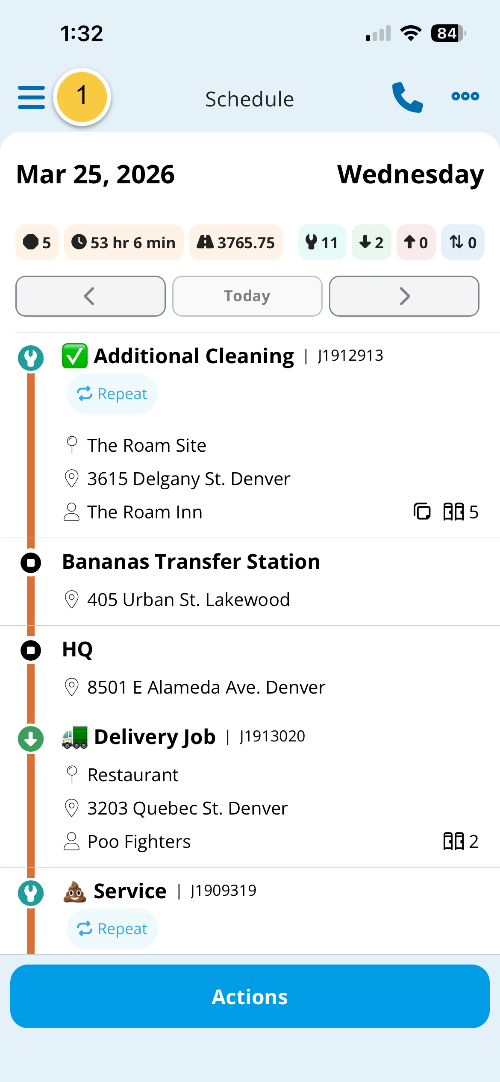
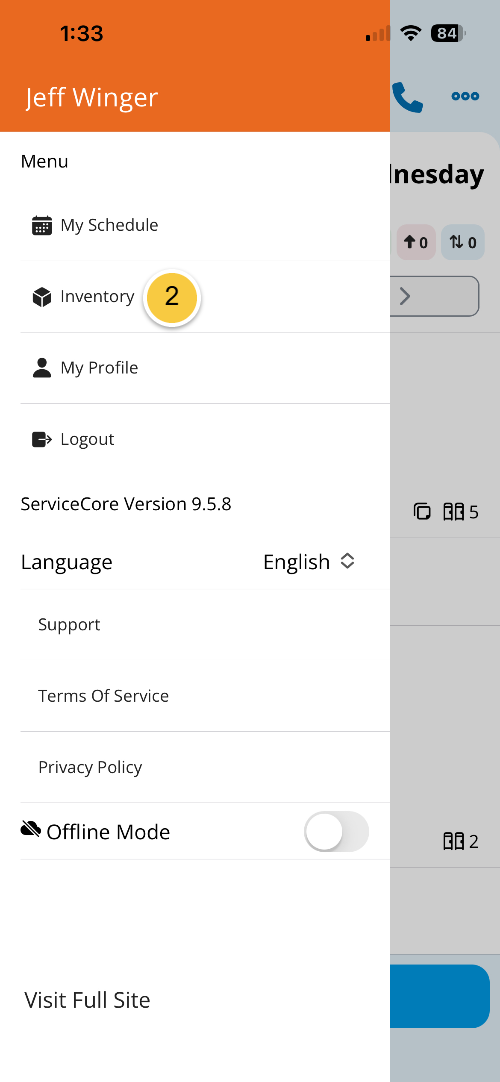
Tap the “menu” (three lines) icon.
Tap “Inventory.”
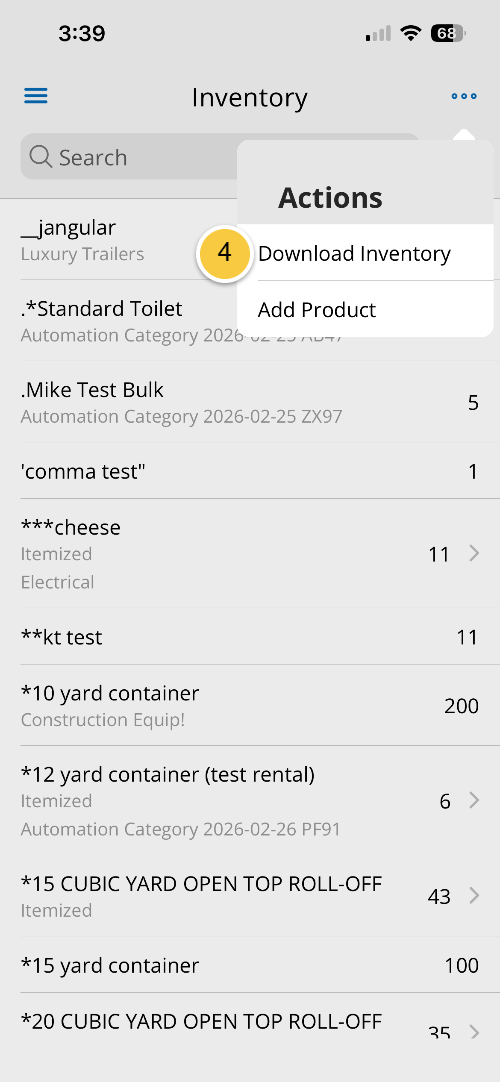
Tap the “three dots” menu.

Tap “Download Inventory.”
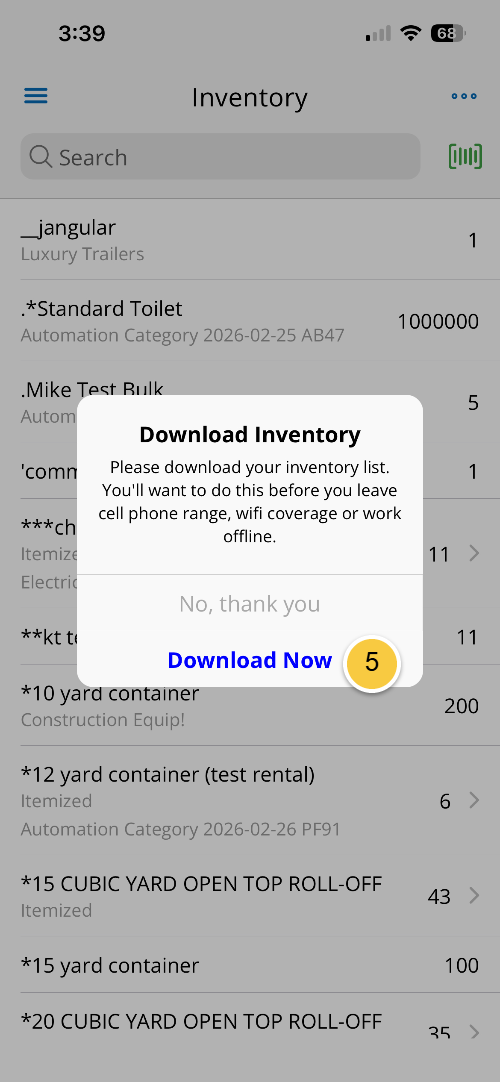
In the window that appears, tap “Download Now.”
After your inventory has finished downloading, tap the “menu” icon.

Tap “My Schedule” to return to your list of jobs for the day.
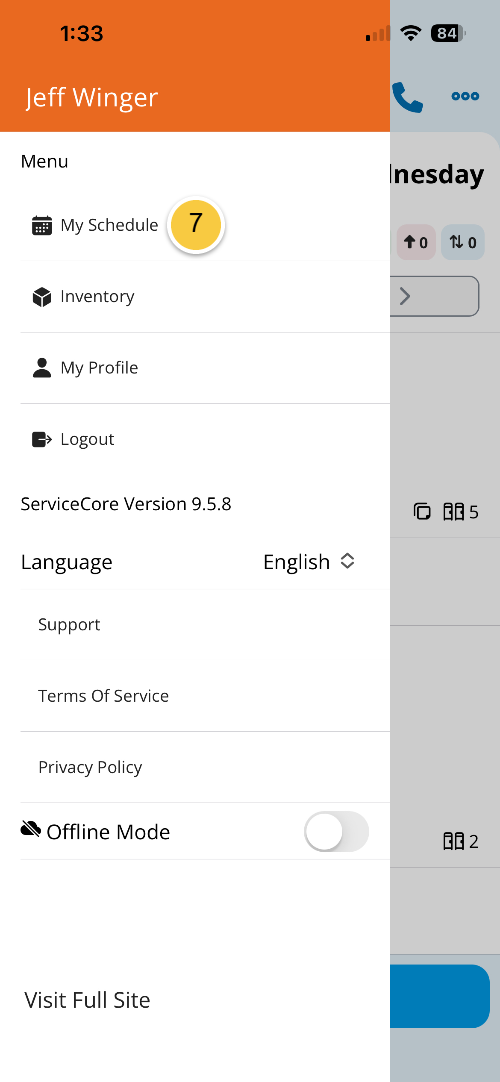
View Your Schedule
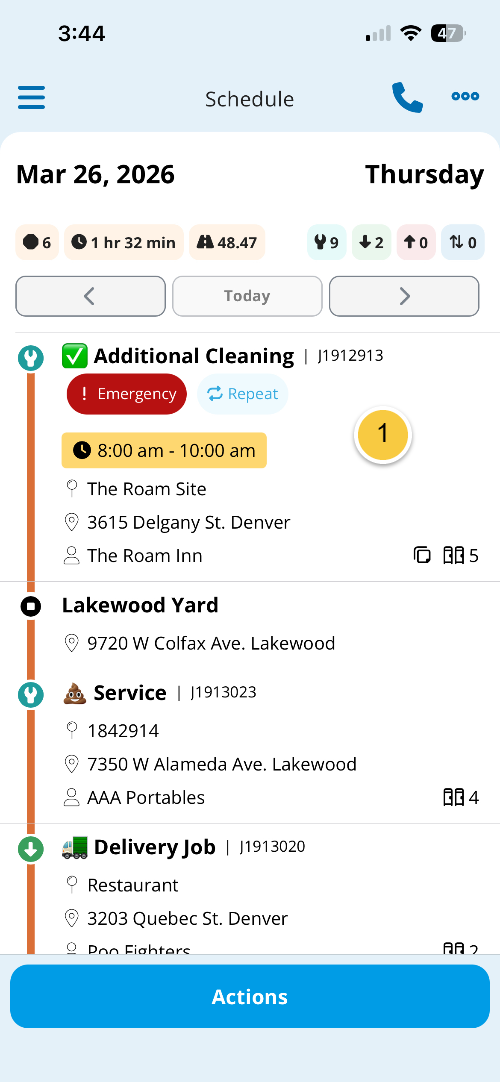
When you log in, the Mobile App takes you to your schedule for the day.
From here, you can:
View all assigned jobs in order
Navigate between past and future dates
Return to the current day’s schedule
Open jobs to view more details
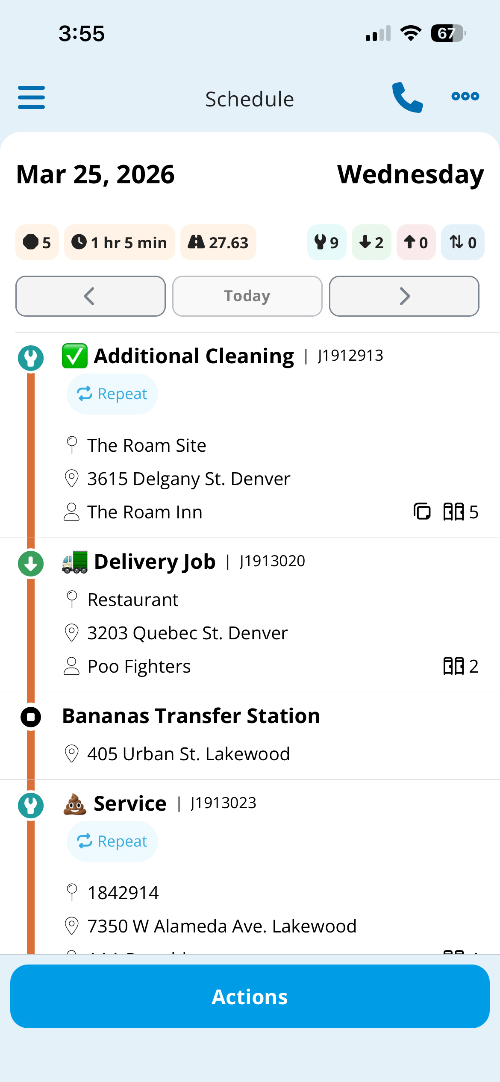
Before starting your first job, review your route details.
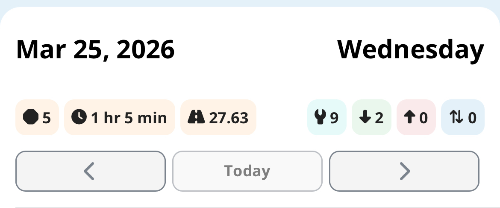
Here you can review:
Total number of stops
Estimated distance and duration
Types of jobs scheduled (service, delivery, pickup, or exchange)
Job Details Overview
When you tap a job in your job list, you will see important information about the job at the top.
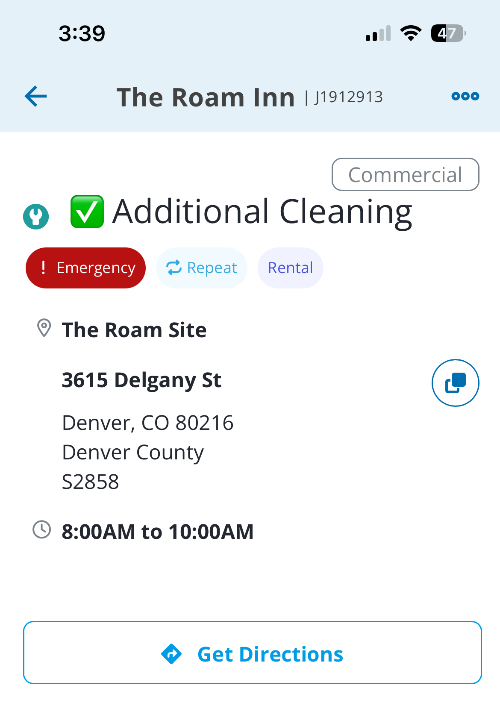
Customer Name and Job Number
Job Type and Customer Type
Emergency, Repeat, or Rental Tags (when applicable)
System Type (when applicable)
Site Name, Location, and Number
Get Directions Button
Below that information is a list of sections that provide more details about the job.
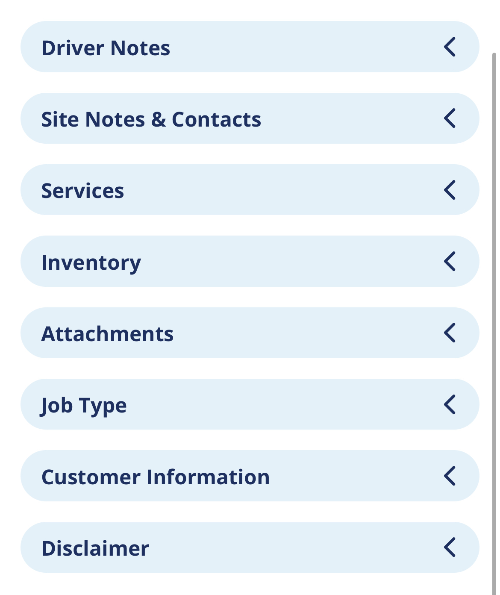
Most of this information is hidden to start, but you can expand each section by tapping its carrot () icon.
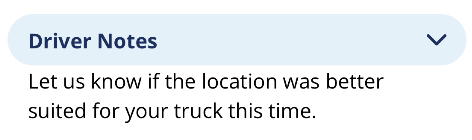
Driver Notes
Site Notes & Contacts

TIP: Tap the “phone” icon to call the site contact when needed and click Site Attachments to open them in a browser on your phone.
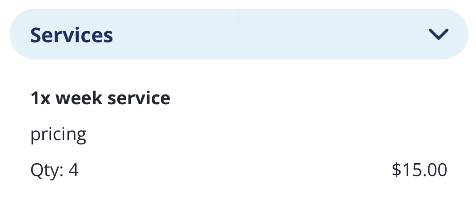
Services
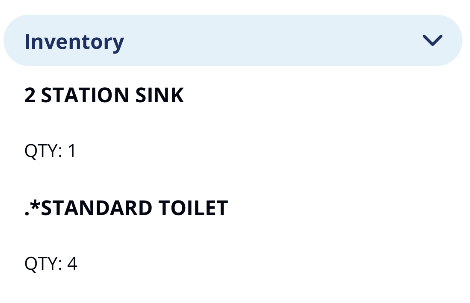
Inventory (when applicable)
System Information (when applicable)
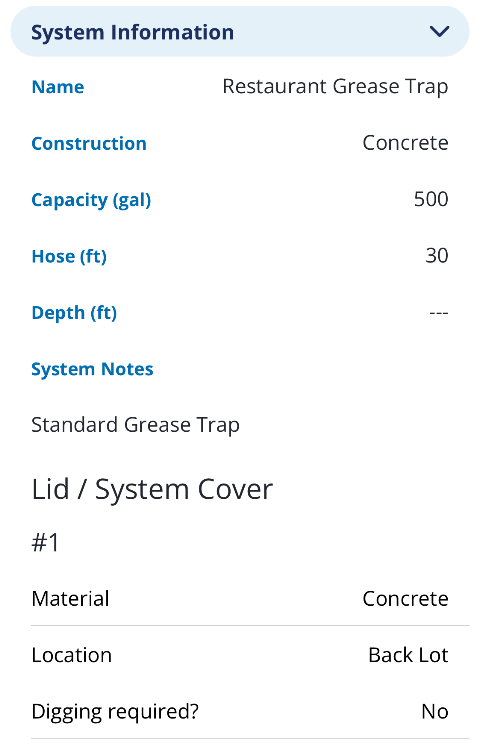
This section will hold information including system name, construction, capacity, hose, depth, and lid or system cover information.
Attachments
Job Type

Customer Information

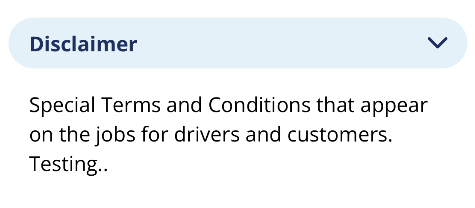
Disclaimer (when applicable)
Start a Job
Once you are ready to begin work, and start the job, follow these steps:
Tap the Job in your job list.
Tap “Get Directions.”
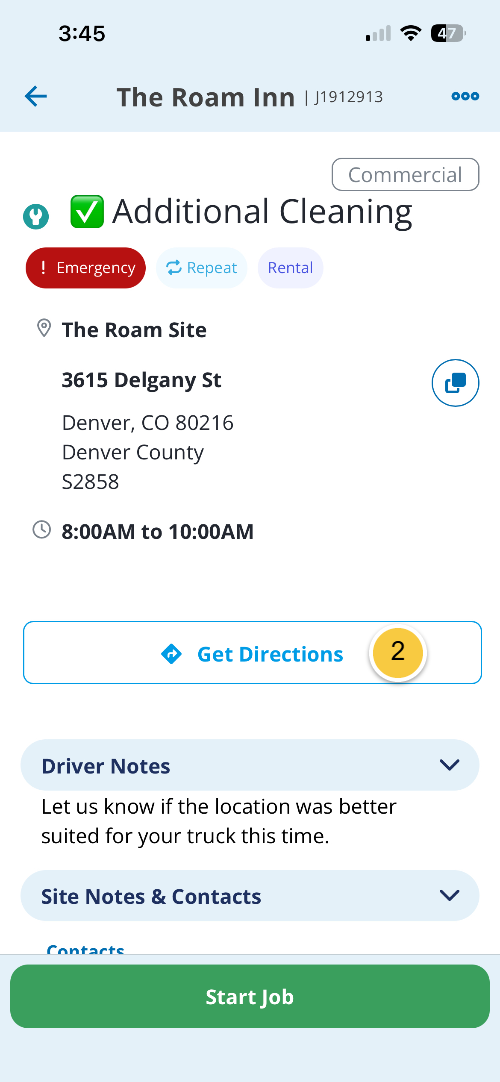
In the menu that appears, tap your preferred map.

Drive to location.
Once you arrive, tap “Start Job.”
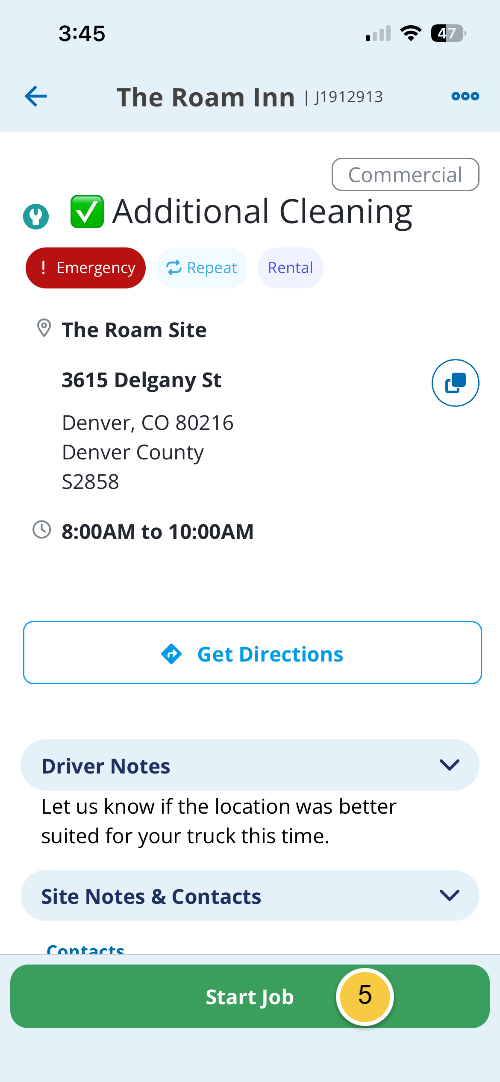
After starting a job, you can begin completing work, including:
Performing assigned tasks
Managing inventory
Adding notes or photos
Updating job progress
FAQs
Why don’t I see any jobs in my Schedule?
Jobs must be assigned to you before they appear in the Mobile App. First, confirm you are viewing the correct day. If you still do not see any jobs, contact your dispatcher.
What does starting a job do?
Starting a job records the start time and updates the status in ServiceCore.
Can I view job details before starting the job?
Yes. You can open and review job details, directions, and notes before starting the job.
If you have any questions, please reach out to our Support team through the chat widget on the bottom of this page or by sending an email to support@servicecore.com!