Schedule Icons Overview
Last updated: November 10, 2026
Icons are used on the schedule to convey information in a tiny amount of space. For example, a checkmark icon takes up less space than spelling out the full word "Done". By using icons, the schedule shows a lot of information on your screen, whether you have a big monitor, a small monitor, or you use a tablet or phone.
Icon Legend
Below is a list of icons you may see on the schedule, depending on the types of jobs or rentals your company offers.
Header Icons and Buttons | ||||
Icon |  | Name |  | What's this for? |
 |
| Previous |
| View the previous week or day |
 |
| Next |
| View the next week or day |
 |
| Calendar |
| Jump to a specific date, week, month or year |
 |
| Ellipsis |
| View additional options including GPS Tracking, Tour Plan, and pricing route sheets |
 |
| View Options |
| Toggle to view schedule with or without destinations and drivers with no jobs |
 |
| Filters |
| Filter the schedule with options including job type, driver, and division |
 |
| Week |
| View jobs one week at a time (weeks start on either Sunday or Monday, depending on your Company Preferences settings) |
 |
| Day |
| View jobs one day at a time |
 |
| List |
| View jobs in a list format, one day at a time |
 |
| Map |
| View jobs for the day on a map with options to view |
 |
| This Week |
| In Week or Map (Week) view, jump to the current week |
 |
| 4 Weeks |
| In Map view, view your schedule for the next four weeks |
 |
| Current 4 Weeks |
| In Map (4 Weeks) view, jump to the current next four weeks |
 |
| Today |
| From the Day, Map (Day), or the List view, jump to the current day (today) |
 |
| Filter Days |
| In Map (Week or 4 Weeks) view, filter the days you want shown or hidden |
Sidebar Icons and Buttons | ||||
Icon |
| Name |
| What's this for? |
 |
| Destination |
| This icon is used for frequent destinations such as wastewater treatment plants, landfills, storage yards, etc. |
 |
| Handle |
| Click this handle to drag and change the order of Destinations in the sidebar |
 |
| Close |
| Click the arrow to hide and show the sidebar |
 |
| Add Destination |
| Click this button to Add a Destination |
Technician Icons | ||||
Icon | Name | What's this for? | ||
 |
| Stops |
| This icon displays the number of stops scheduled for a technician |
 |
| Pick-Up |
| This icon displays the number of pickups scheduled for a technician |
 |
| Delivery |
| This icon displays the number of deliveries scheduled for a technician |
 |
| Service |
| This icon displays the number of items to be serviced scheduled for a technician - clicking this icon will provide a full breakdown of items |
 |
| Exchanges |
| This icon displays the number of exchanges scheduled for a technician |
 |
| Optimize Day |
| Click this icon to optimize this technician's route for the current day |
 |
| Reverse Route |
| Click this icon to reverse a technician's route for the day |
 |
|
| Click this icon to print a daily route sheet or service tickets | |
 |
| View on Map |
| Click this icon to view the day's jobs on a map |
 |
| Reassign |
| Click this icon to reassign jobs' dates and/or technician |
 |
| New |
| Click this icon to create a job or create a rental for this date for this technician and date |
 |
| Arrow |
| In the Week view, click the arrow next to a technician's name to view additional options |
Job Icons | ||||
Icon |
| Name |
| What's this for? |
 |
| Territory |
| The colored bar in front of jobs indicates the territory where the job site is located |
 |
| Repeat |
| This is a repeat job |
 |
| Emergency |
| This is an emergency job |
 |
| Route |
| This job is on a route |
 |
| VIP |
| This job is for a VIP customer |
 |
| In Progress |
| This job is currently in progress |
 |
| Done |
| This job is completed |
 |
| Invoiced |
| This job has been invoiced |
 |
| Partial Service |
| Partial service was performed for this job |
 |
| Unable to Service |
| This job was unable to be serviced |
The icons and buttons below appear when you hover over a job: | ||||
Button |
| Name |
| What's this for? |
 |
| Handle |
| Hover over the job to see this handle. Click and hold the handle to drag and drop the job to a new order in the list of jobs. Or drag the job to a different day or technician. |
 |
| Reschedule |
| Click this button to edit or reschedule the job for another day or technician |
 |
|
| Click this icon to print the service ticket | |
 |
| Complete |
| Click this icon to mark a job as done |
 |
| Create Invoice |
| For completed jobs, click this button to create an invoice |
Map Pin Icons | ||||
 |
| Delivery |
| This icon is for rental delivery jobs |
 |
| Pick-Up |
| This icon is for rental pickup jobs |
 |
| Service |
| This icon is for service jobs |
 |
| Destination |
| This icon is for destinations |
 |
| Exchange |
| This icon is for exchange jobs |
 |
| Completed |
| Map pin icons with a white background is for jobs that have been completed |
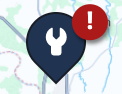 |
| Emergency |
| Emergency Jobs will show the icon for the job type plus an exclamation point to indicate its an emergency job |
If you have any questions, please reach out to our Support team through the chat widget on the bottom of this page or by sending an email to support@servicecore.com!