Add and Manage Users
Last updated: November 24, 2026
Adding your employees as users in your ServiceCore account is how you give your drivers, office staff, sales reps, and other team members access to ServiceCore and/or the mobile app for day-to-day operations.
Their actions within your ServiceCore account are tracked across various audit logs so you can keep track of who did what and when.
When someone leaves your business or no longer needs access, you can deactivate them or delete them, depending on whether you still need their activity history.
Your drivers (technicians) also affect your monthly bill. Whenever your driver count changes, your bill can change with it.
Before You Start
Here are a few things to know before you continue:
Only Account Owners and Admins can add users, (re)set passwords, deactivate/reactivate users, and enable/disable the “Show User on Schedule” setting in a user’s profile.
Only Account Owners, Admins, and Managers can delete users.
Only Assistant Managers and up can edit a user's profile, and you must have a higher permission level than the user you're editing.
We recommend that each user be added individually instead of sharing a single login so you can better track everyone's access permissions and activity in your account.
We recommend that each user be added with a valid working email address so they can reset their password on their own.
Drivers must be added as a user AND have the "Show User on Schedule" box checked in their profiles so you can assign jobs to them and so they can complete those jobs in the mobile app.
Your contract sets the minimum number of drivers (technicians) you pay for each month. If you add more drivers than that minimum, your monthly price increases. If you remove drivers back down to your minimum, your monthly price can decrease, but you’ll always pay at least your contracted minimum.
Click here for step-by-step guidance in your ServiceCore account when adding a user
Users Overview
In ServiceCore, you add employees as users to your account and assign permissions that control what each person can access. Without adding employees as users, you cannot perform key tasks such as assigning jobs to drivers, tracking job completion, managing your customers, or invoicing them.
Each user has a separate login, which allows you to manage access if someone leaves your company or is temporarily unavailable. User permissions help protect sensitive information by limiting access based on each employee’s job responsibilities.
ServiceCore accounts can have only one Account Owner. The Account Owner has the highest level of access and is responsible for managing account-level settings.
ServiceCore offers 9 other user roles, each with a different level of access. The combination of a user’s role and access is referred to as a "permission level". Click here to learn more about user permission levels.
Add a User
Adding your employees as users in ServiceCore is an essential step in setting up your account so that your team can use ServiceCore for daily operations such as dispatching, invoicing, and completing jobs.
Each user should have their own profile and login, making it easier to manage access, assign work, and maintain security as your team grows and changes.
To add a new user, watch the video above or follow the instructions below:
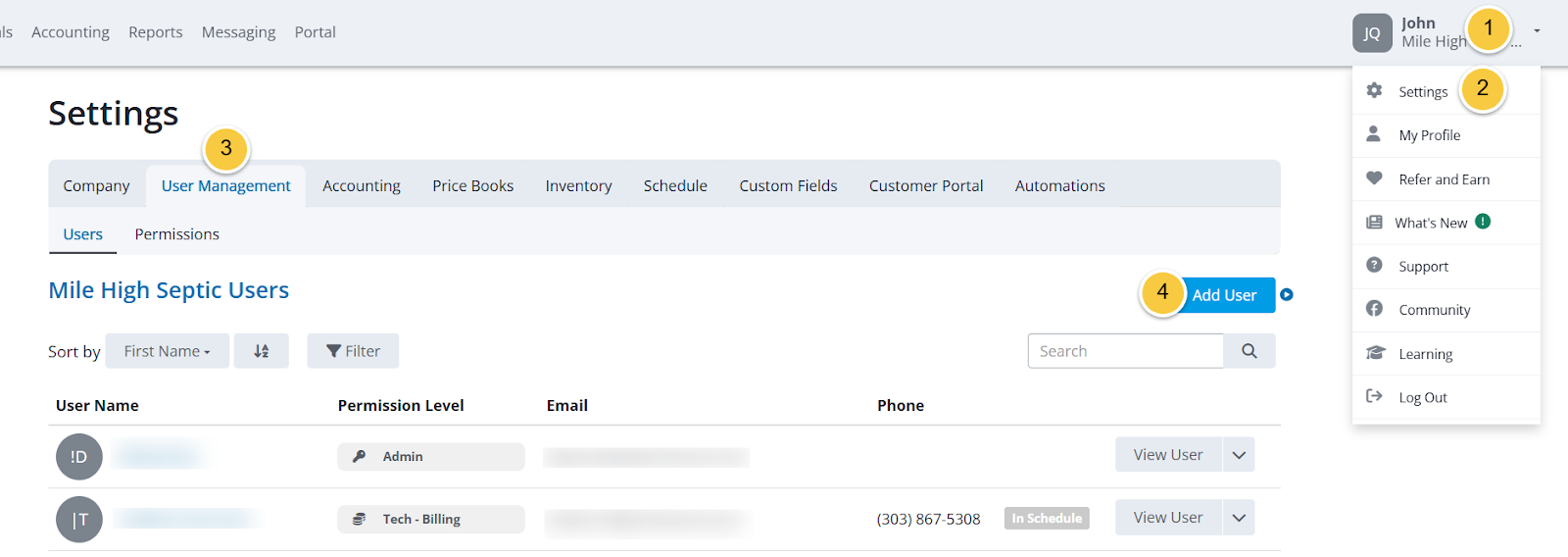
Click on your name in the top right corner.
Click on “Settings”.
Click into “User Management”.
Click on the “Add User” button.
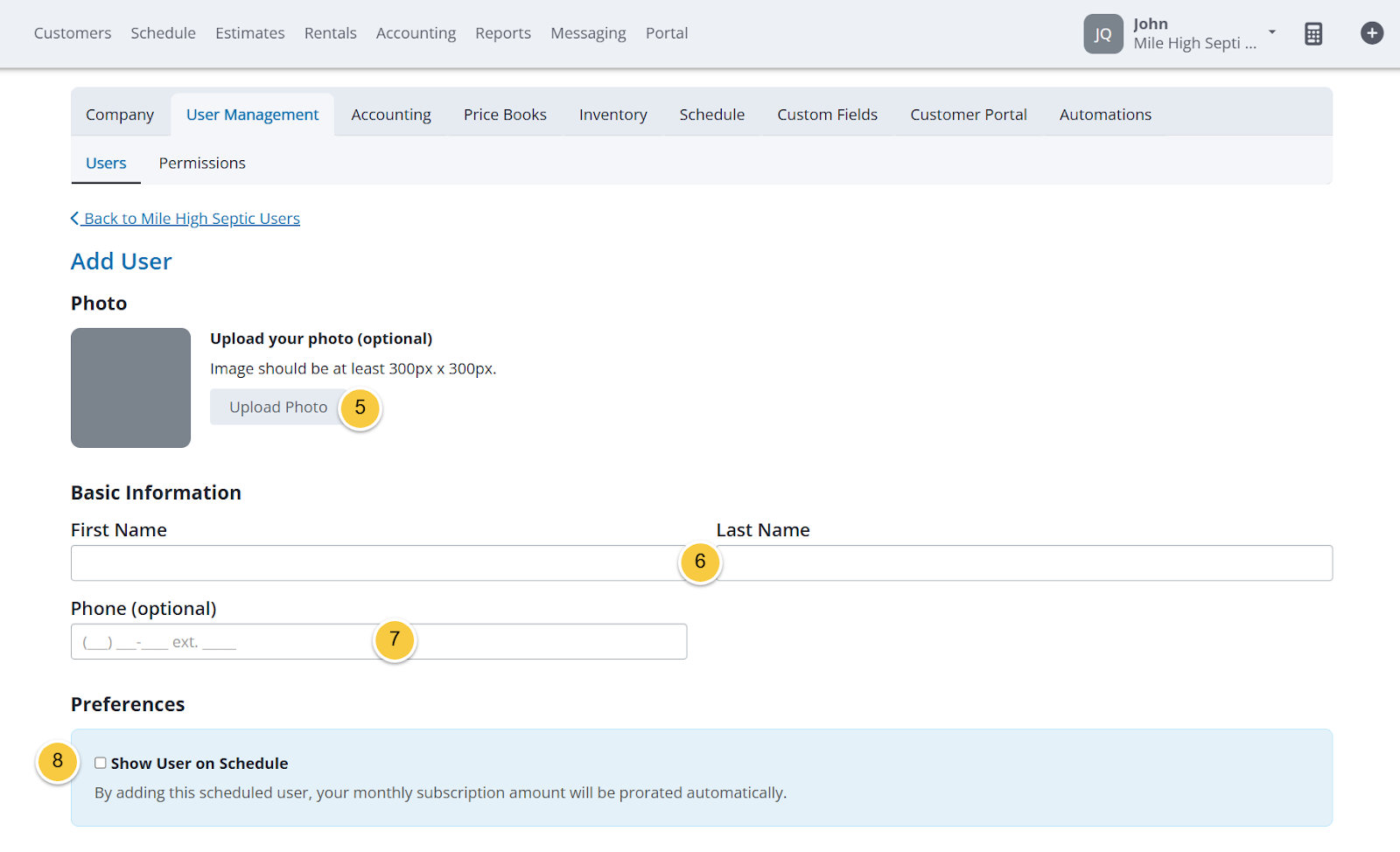
Uploading a Profile Photo is optional, but makes it easier to identify drivers on the schedule.
Add the employee's First Name and Last Name.
Adding a Phone Number is optional, but we recommend adding one for drivers so your team can easily contact them while they are on their route.
If you're adding a driver that needs to be assigned jobs to complete in the mobile app, check the "Show User on Schedule" box.
Please Note: This box can only be checked by Account Owners and Admins, and will affect your monthly subscription amount. Click here to learn more.
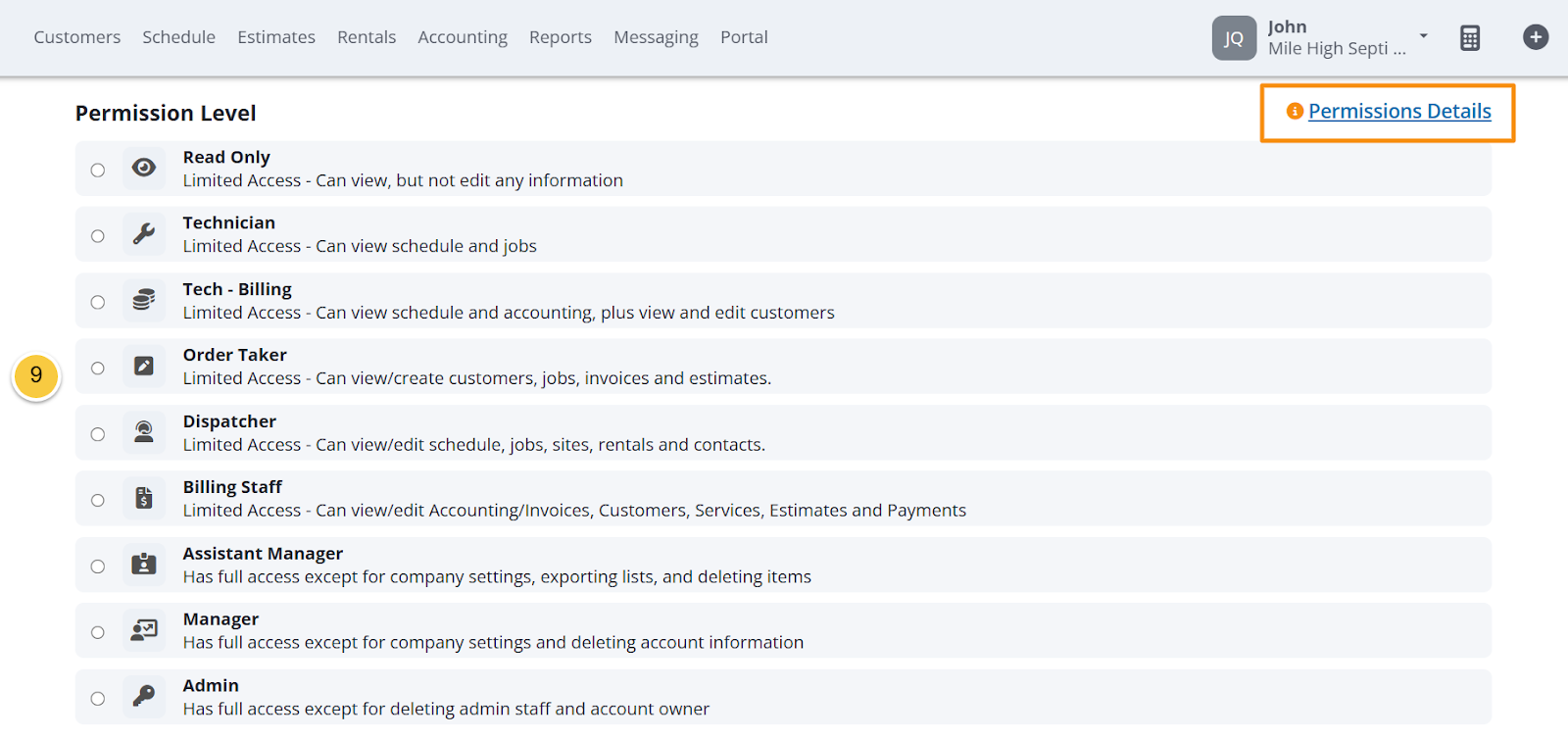
Select the Permission Level the employee needs. Click the linked “Permission Levels” to learn more about the access each level has. You can also click here for a detailed breakdown of each permission level.
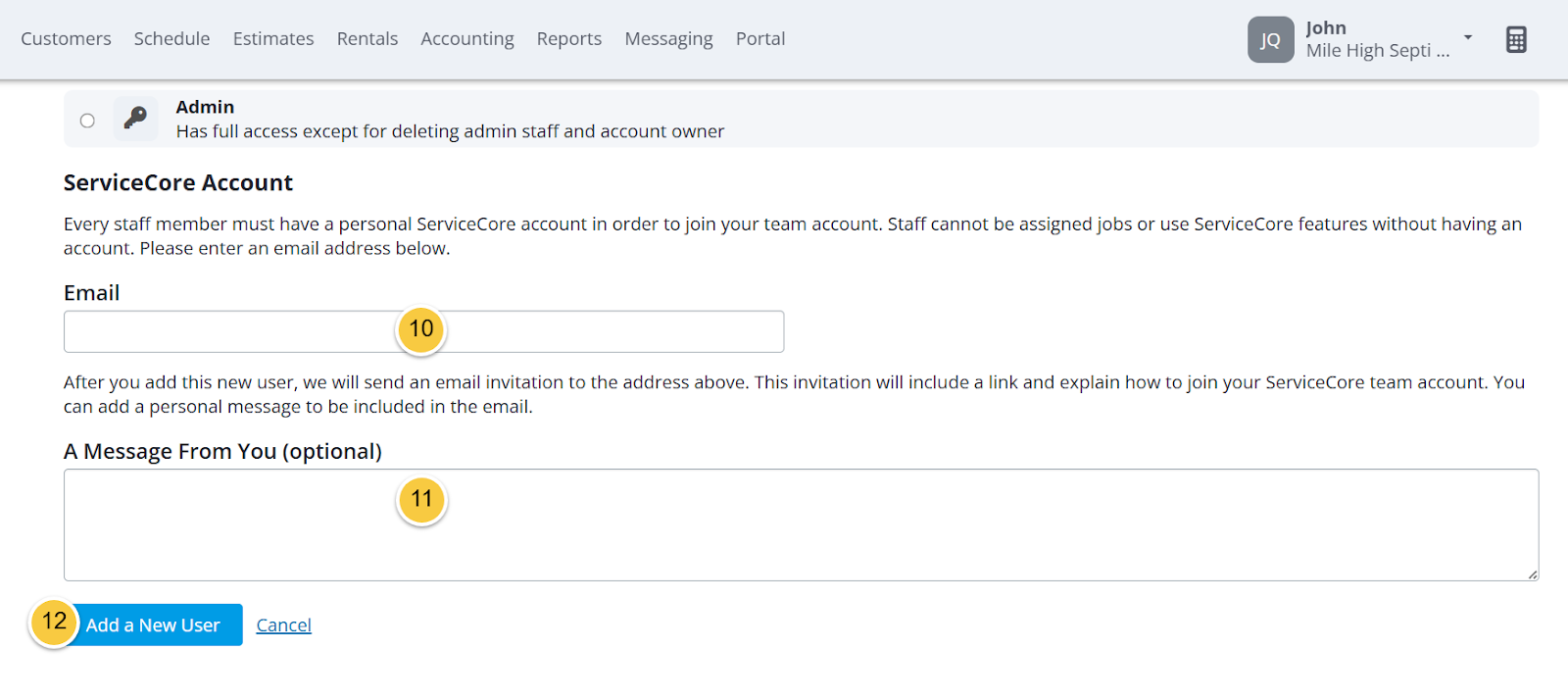
Add an Email Address. This will be their Username when signing into ServiceCore online and through the mobile app.
TIP: Using a valid email address allows users to receive email notifications and reset their password on their own.
Adding a message to include in their invitation email from ServiceCore is optional, but we recommend adding a brief explanation of what ServiceCore is, especially if you haven't announced it more broadly to your entire team.
Click on “Add New User” to save your new user and send the invite email.
If you added a valid working email address to this new user's profile, they'll receive an invite email and need to follow the instructions to set up a password for their profile's login.
For password setup and account login instructions, please review this article for all non-Drivers or this article for all Drivers.
Set Up a User's Password
If you didn't add a valid working email address to a new user's profile, they won't receive ServiceCore's invite email and can't set up a password for themselves.
Instead, you'll need to set up their password for them and let them know what it is when they first log in.
To do that, follow the instructions below:
From the Users list, click on the “View User” button to the right of the newly added user.
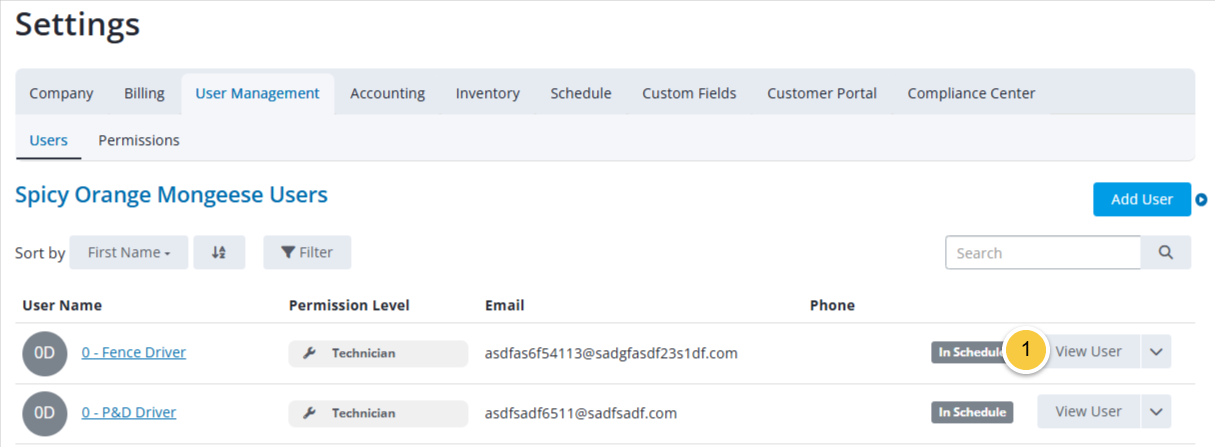
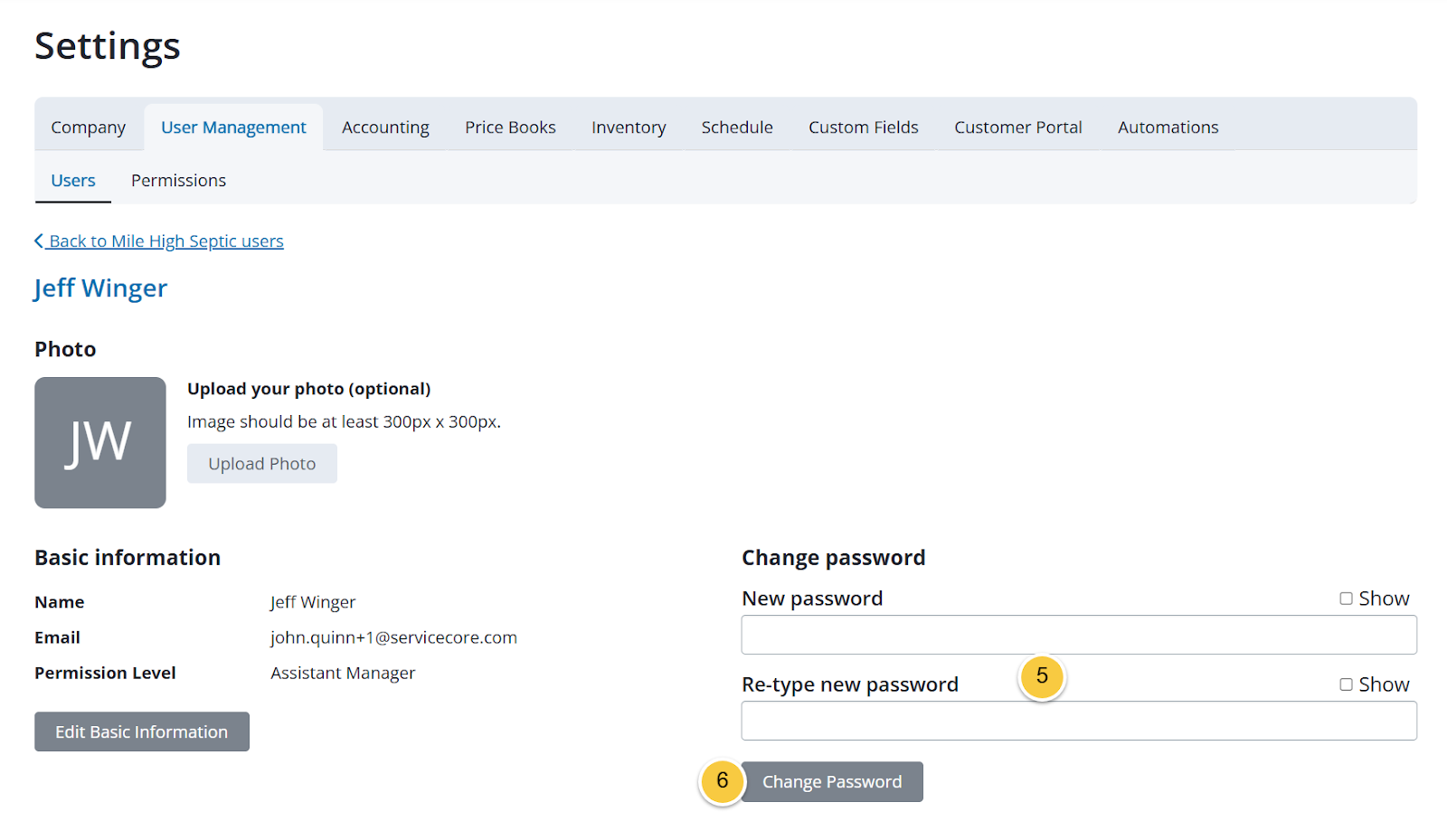
Add the new password in the Change Password section of the user's profile.
Click on “Change Password” save your changes.
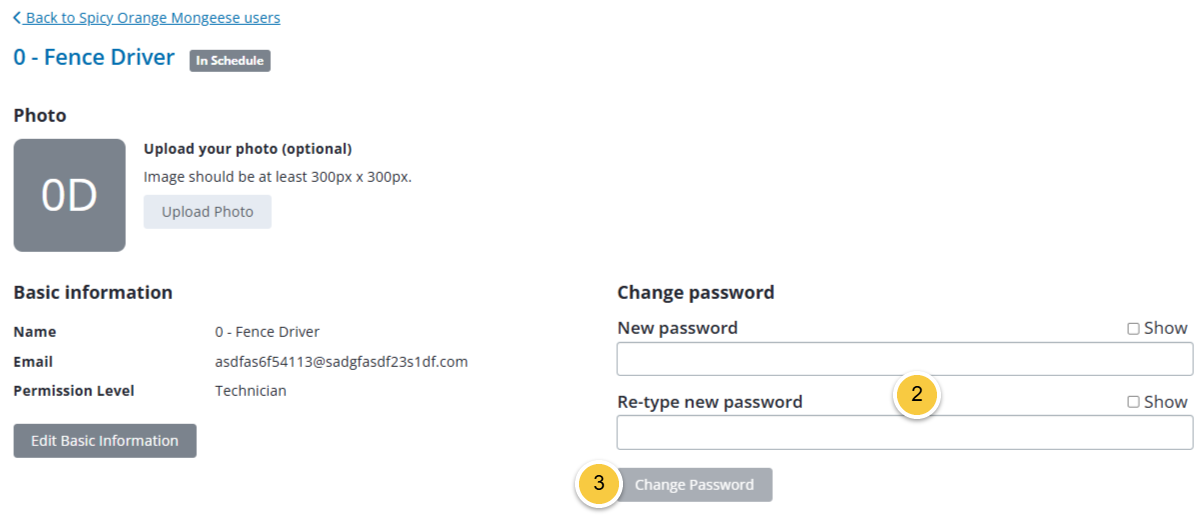
When you're done, don't forget to let the newly added user know what their username + password combo is.
Edit a User's Profile
Once users are added to your ServiceCore account you can update their information at any time.
Editing a user allows you to keep contact details current, adjust permissions as responsibilities change, and make sure the right employees have access to the right tools.
Please Note: Only Assistant Managers and up can edit a user's profile, and you must have a higher permission level than the user you're editing.
To edit a user's profile, follow the instructions below:
Click on your name in the top right corner.
Click on “Settings”.
Click into “User Management”.
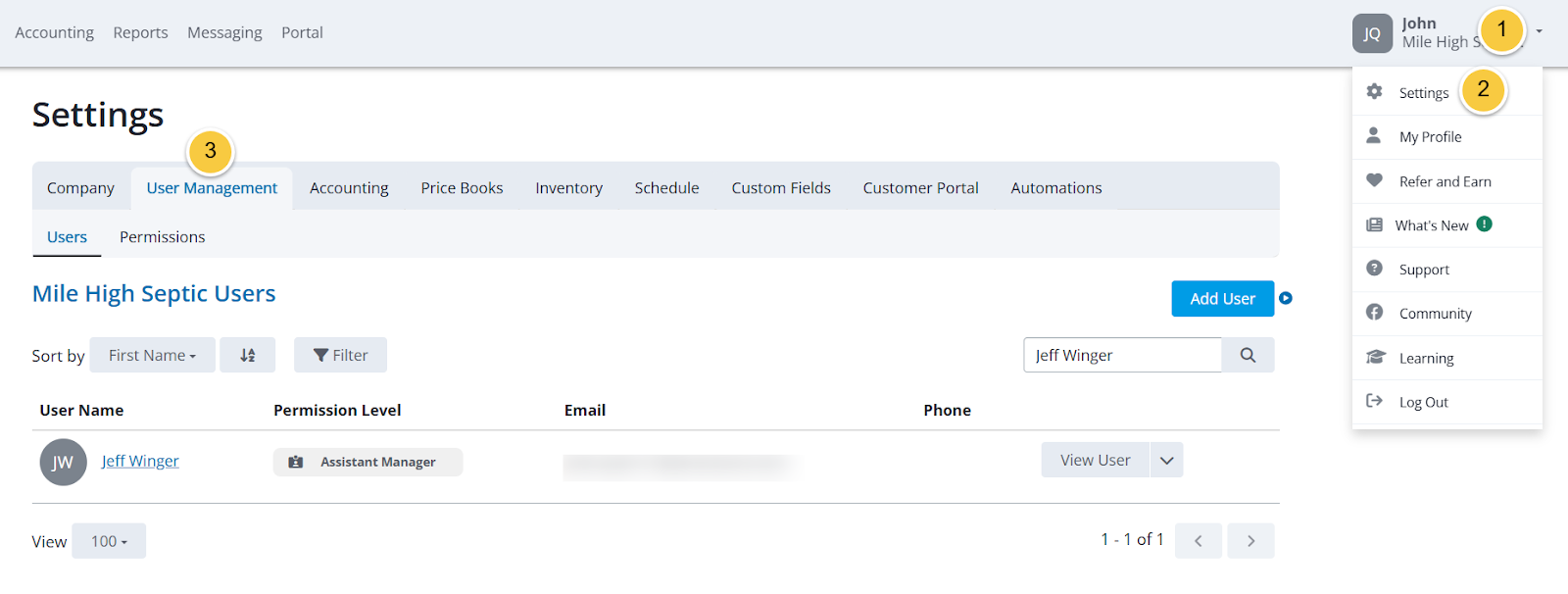
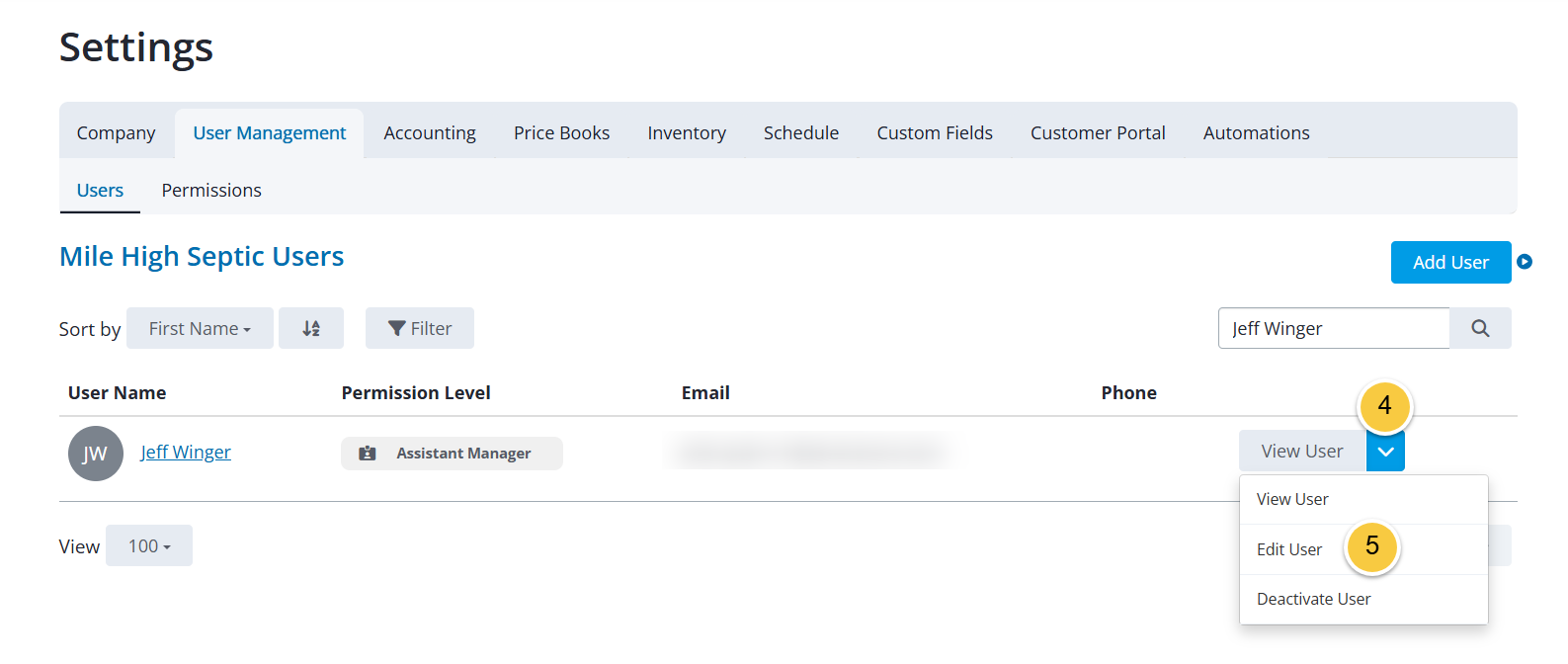
Click on the down arrow next to the "View User" button.
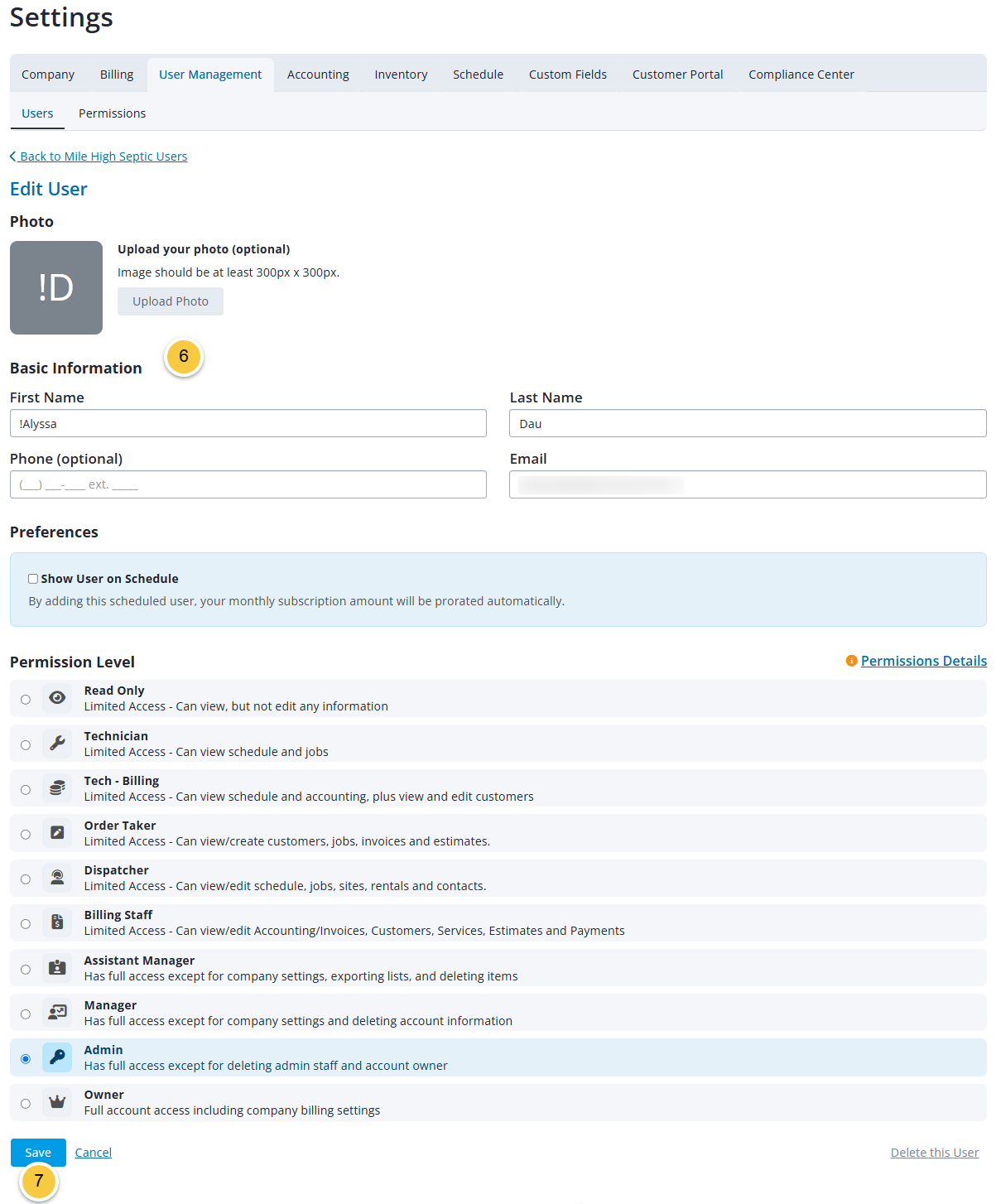
Click on “Edit User” from the menu that appears.
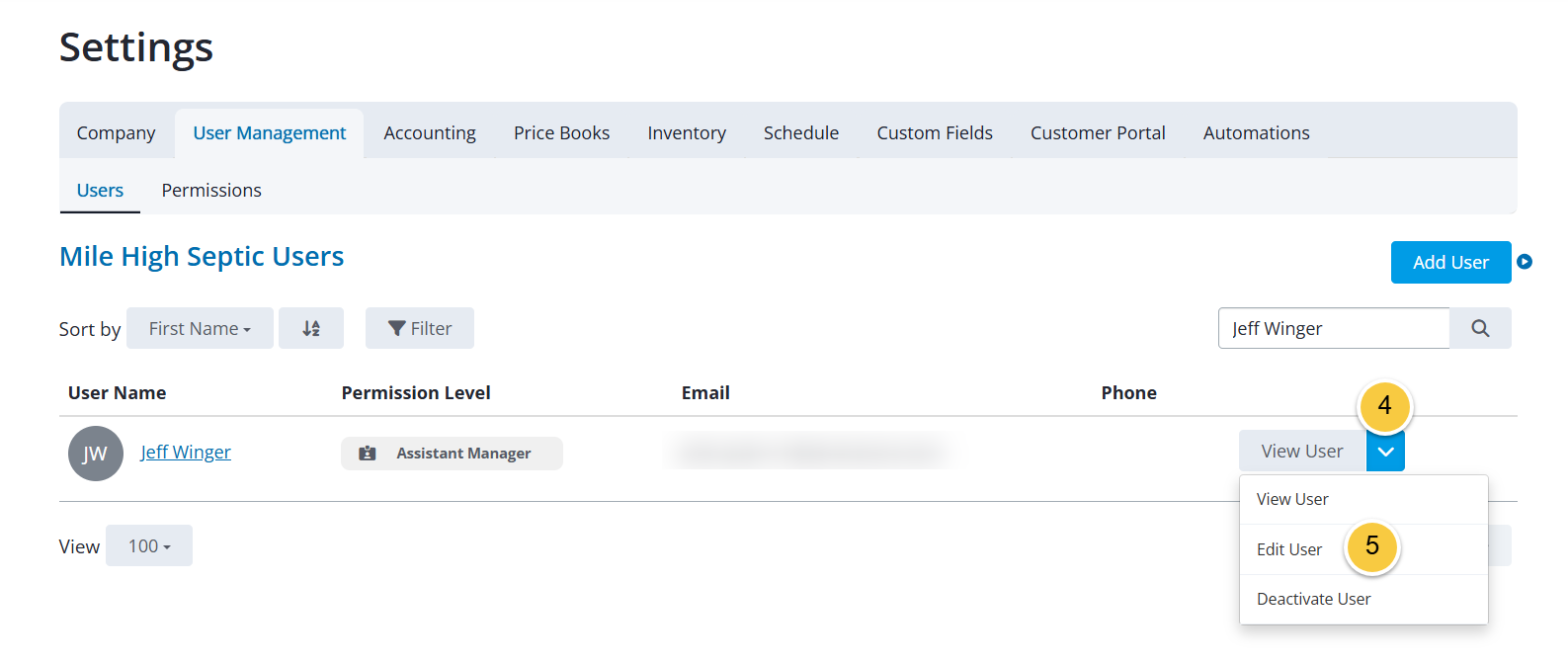
Update the necessary fields.
Click “Save”.
Change a User’s Password
If a user forgets their password or needs it reset, an Account Owner or Admin can update it from the user’s profile.
To change a user’s password, watch the video above or follow the instructions below:
Click on your name in the top right corner.
Click on “Settings”.
Click into “User Management”.
Click on the “View User” button to the right of the user.

Add the new password in the Change Password section of the user's profile.
Click on “Change Password” save your changes.
After the password is changed, the user can log in immediately using their email address as their username and their new password.
They'll also receive an email notification letting them know that their password has been updated if their profile contains a valid working email address.
Remove a User
When someone leaves your business or no longer needs access to ServiceCore, you can either deactivate them or delete them. Both options stop the person from using ServiceCore, but they handle the user's record differently.
Deactivating someone means that they'll stay in your account, be hidden from the main Users list, and can no longer log into ServiceCore or the mobile app. Choose this option if want to retain their activity in your ServiceCore account for future reference.
Deleting someone means that they'll be completely removed from your ServiceCore account along with their past activity. Choose this option if you no longer need them or their historical activity in your account.
Remove a User From the Schedule
If you're deactivating or deleting a driver, you'll want to remove them from the schedule first so they no longer count against your contracted amount of drivers.
Removing a driver from the schedule also helps if they change roles or go on an extended leave; you can simply remove them without deactivating or deleting their profile.
Please Note: Only Account Owners and Admins can enable or disable the “Show User on Schedule” setting in a user’s profile.
To do that, follow the instructions below:
Click on your name in the top right corner.
Click on “Settings”.
Click into “User Management”.
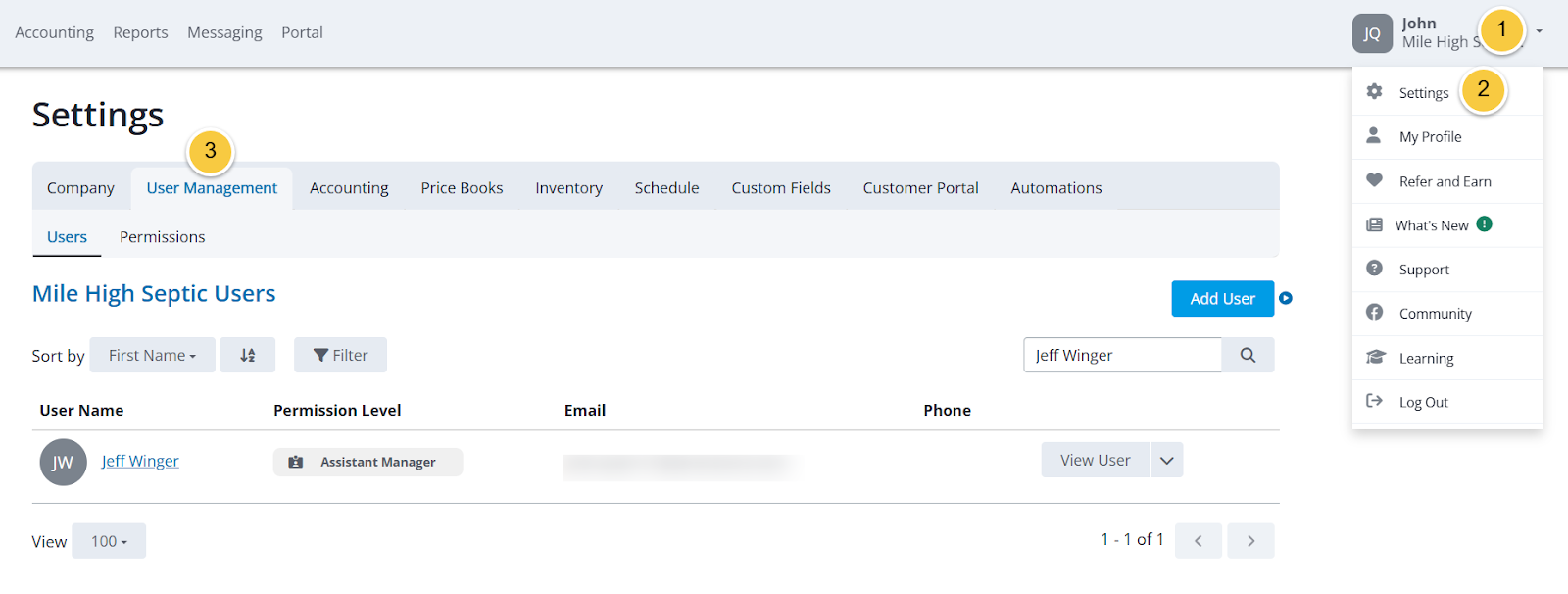
Click the down arrow next to the "View User" button.
Click on “Edit User” from the menu that appears.
Uncheck the box to disable the "Show User on Schedule" setting.
Click “Save”.
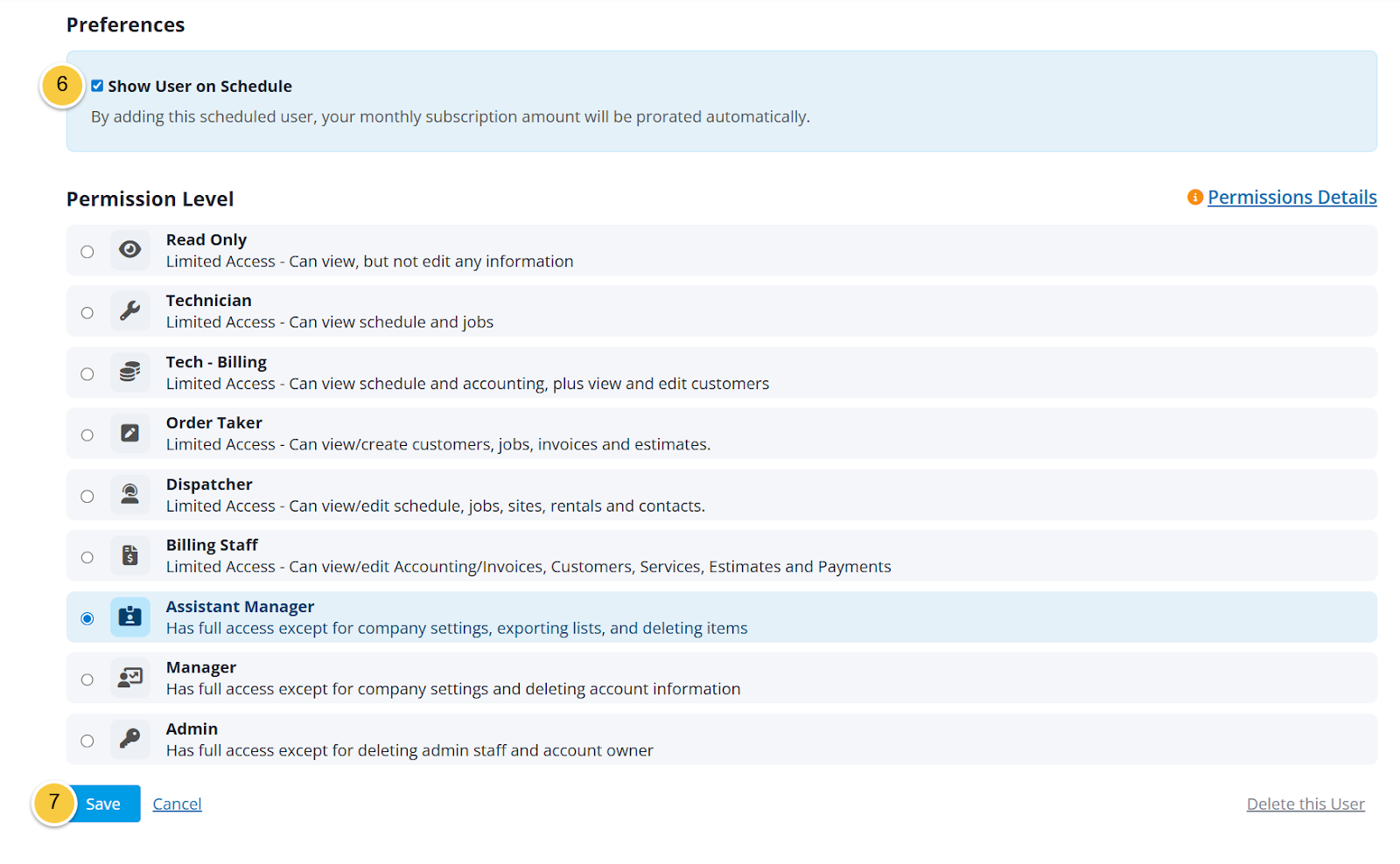
If the user has jobs assigned to them, you'll be prompted to assign those jobs to another driver. Click “Remove and Reassign” to save your changes.

Deactivate a User
If an employee leaves your company or no longer needs access to ServiceCore, you can deactivate their user profile.
Deactivating a user removes their ability to log in while preserving their historical data, including completed jobs and other activities.
Please Note: Only Account Owners and Admins can deactivate a user's profile.
To do that, follow the instructions below:
Click on your name in the top right corner.
Click on “Settings”.
Click into “User Management”.
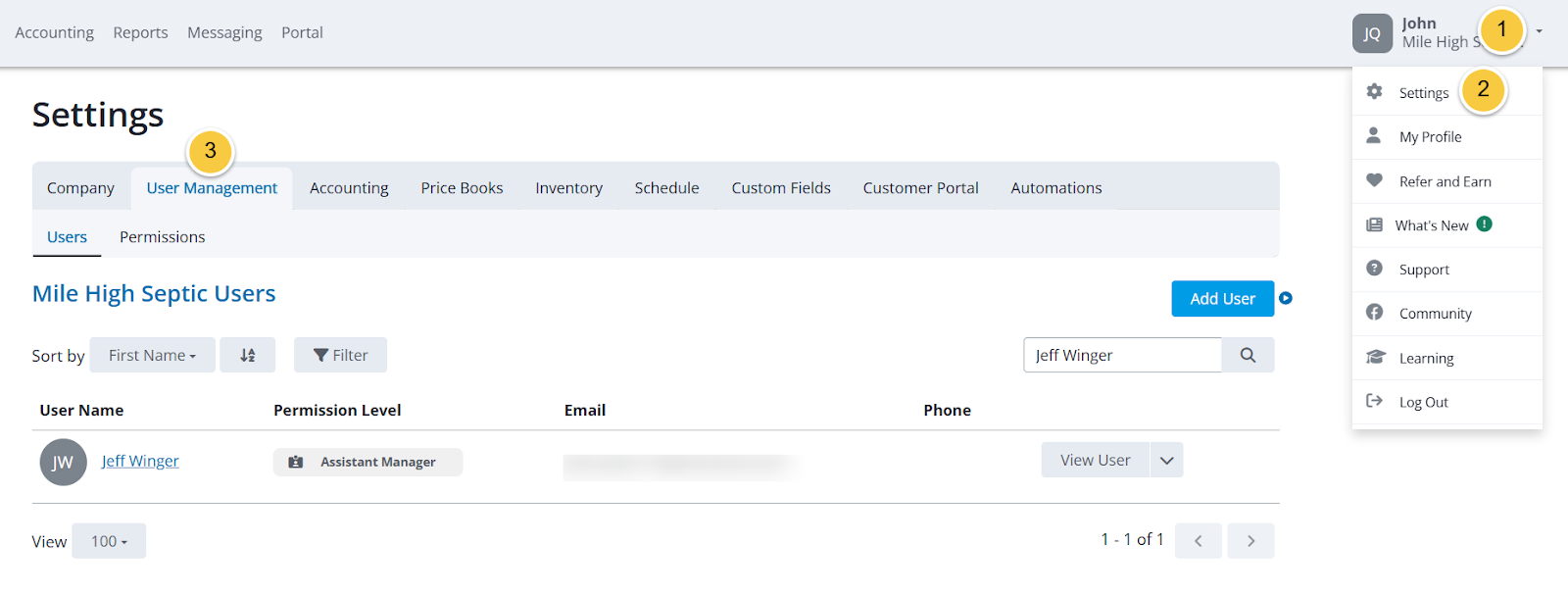
Click the down arrow next to the "View User" button.
Click on “Deactivate User” from the menu that appears.
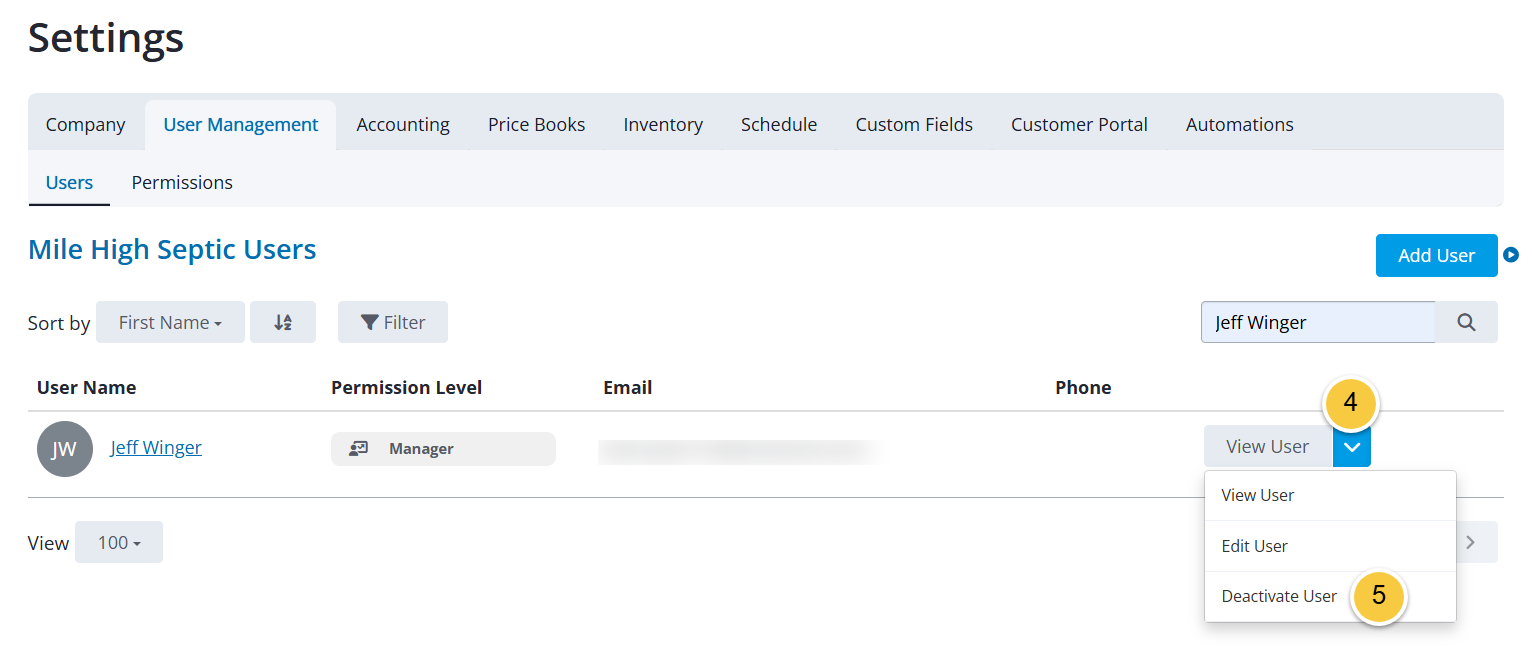
If the user has jobs assigned to them, you'll be prompted to assign those jobs to another driver. Click “Deactivate and Reassign” save your changes.
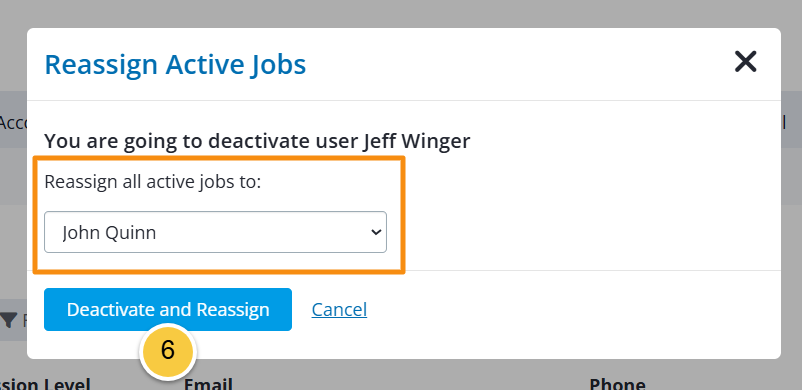
TIP: If you have a new driver starting who will replace your old driver, make sure you add them before deactivating the old driver so you can easily transfer over the jobs from the previous driver using this feature.
If the user doesn't have jobs assigned to them, the page will automatically refresh and your deactivation will save.
Please Note: Deactivating a user whose profile is still marked as "Show User on Schedule" may continue to count toward your total contracted drivers so make sure you uncheck that box!
Reactivate a User
Reactivating a user restores a their access to ServiceCore so they can log in and pick up their work again.
To do that, follow the instructions below:
Click on your name in the top right corner.
Click on “Settings”.
Click into “User Management”.
Click on the "Filter" button at the top of the list.
Check the box for Show Inactive Users.
Use the search bar at the top to find the user you're looking for or scroll through the list until you find them.
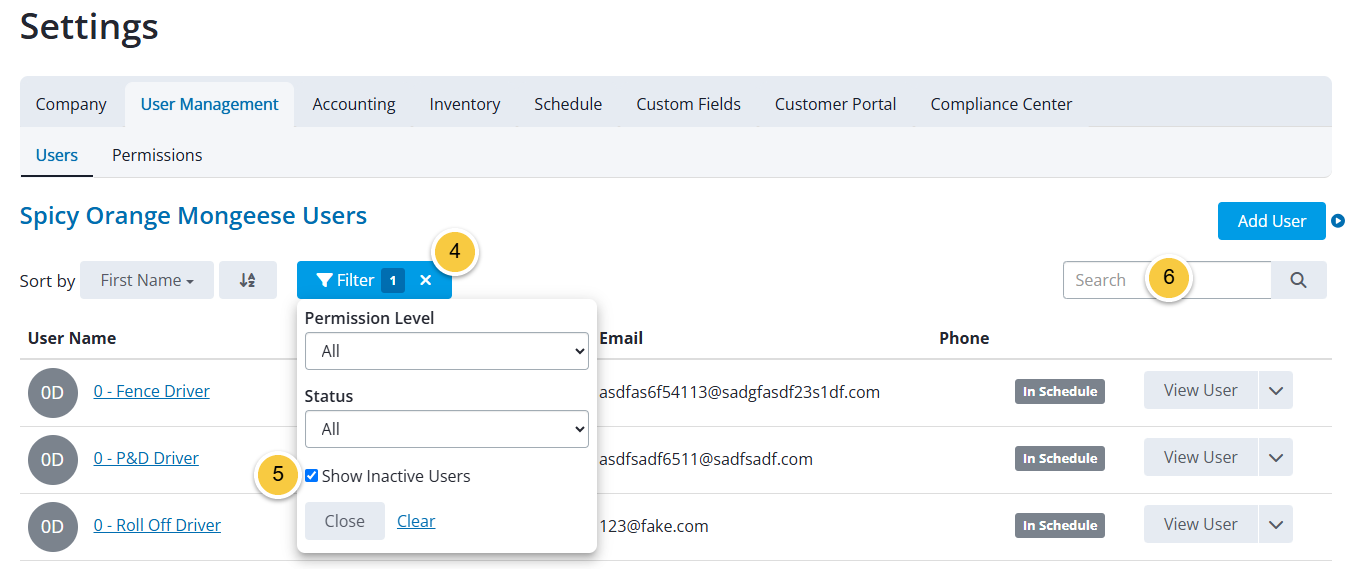
Click the down arrow next to the "View User" button.
Click on “Activate User” from the menu that appears.

The page will automatically refresh and your reactivation will save.
Delete a User
Deleting a user completely removes them and their historical activity from your ServiceCore account when you no longer need them.
TIP: We never recommend deleting users from your account because you never know when you'll need their historical activity. Deactivating a user locks their access and removes them from your main Users list while retaining their activity.
To do that, follow the instructions below:
Click on your name in the top right corner.
Click on “Settings”.
Click into “User Management”.
Click the down arrow next to the "View User" button.
Click on “Edit User” from the menu that appears.
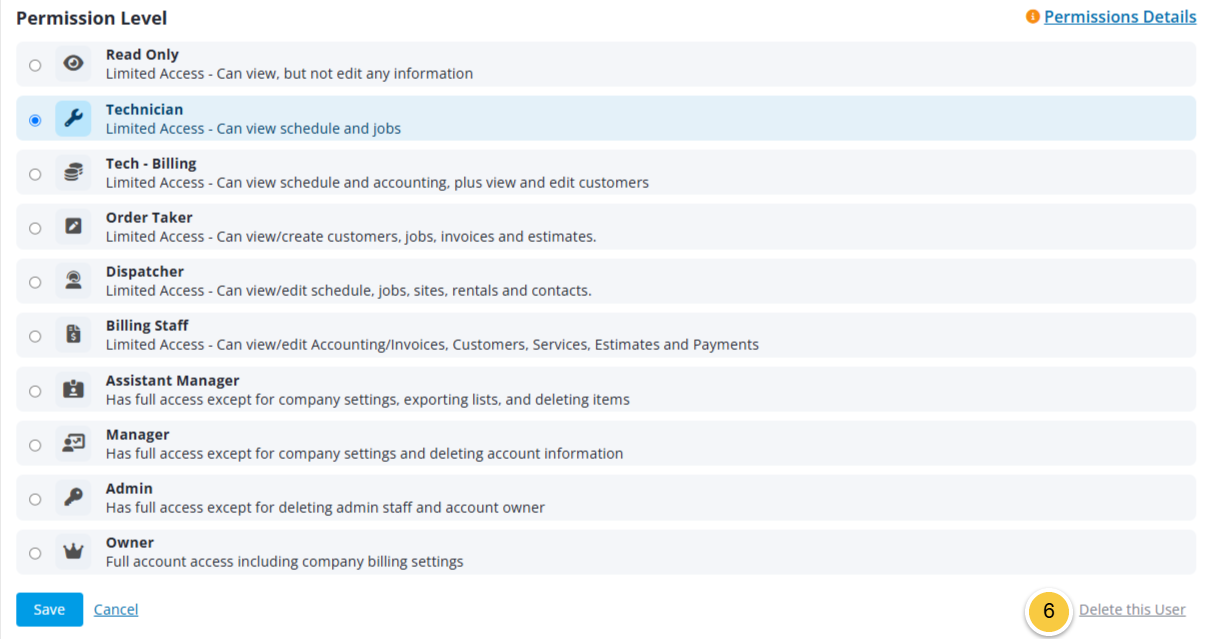
Scroll to the bottom of the user's profile and click "Delete this User".
Click "Confirm Delete" from the prompt that appears.
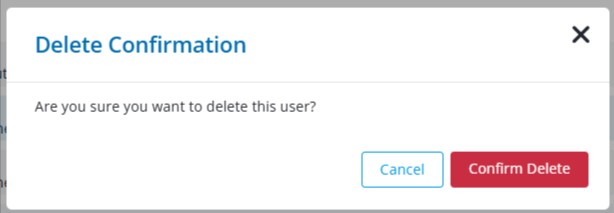
The page will refresh and the user, along with their activity, will be removed from your ServiceCore account.
If you have any questions, please reach out to our Support team through the chat widget on the bottom of this page or by sending an email to support@servicecore.com!