
Job Types help you define and organize the different types of work your team performs in ServiceCore. By creating Rental and Service Job Types, you can improve reporting, streamline workflows, and better categorize your operations.
Before You Start
Here are a few things to know before you continue:
- Every Job Type must have a unique name.
- Job Types appear as selectable options when creating jobs, rentals, and in other related areas of ServiceCore.
- Job Types impact reporting and job organization, so plan how you want to structure your work before creating new ones.
- This article covers creating Rental and Service Job Types. For creating Septic Job Types, please review this article.
- To see if you have access to add, edit, deactivate, or delete Job Types, please review this article on user permission levels.
Add a Rental Job Type
Use Rental Job Types for work that involves delivering, servicing, or removing rental inventory.
To add a Rental Job Type, follow these steps:
- Click your name in the top right corner.
- Select “Settings.”
- Click “Custom Fields.”
- Select “Job Types.”
-
Click the “Add Job Type” button.
-
In the menu that appears, click the “Create Rental Job Type” button.
- Enter a unique Job Type Name. (e.g. Pick Up, Delivery, Swap, etc.)
- Keep the default selection of “Yes” for “Does this job use inventory?” so this Job Type connects to your products.
- Define how inventory interacts with this job. Select Delivery, Pickup, Service, or Exchange.
- Set the Unit of Measure if needed. (e.g. Gallons on Service jobs and Tons on Pickups or Exchanges. This becomes a required field for your drivers upon job completion.)
- Enter an expected Duration to indicate how long this job typically takes to complete. This duration helps with route calculations and is added to any product-level durations.
-
Click the “Add Job Type” button.
Add a Service Job Type
Use Service Job Types for one-time or recurring services that do not involve rental inventory.
To add a Service Job Type, follow these steps:
- Click your name in the top-right corner.
- Select “Settings.”
- Click “Custom Fields.”
- Select “Job Types.”
-
Click the “Add Job Type” button.
-
In the menu that appears, click the “Create Service Job Type” button.
- Enter a unique Job Type Name. (e.g. RV Clean Out, Junk Removal, etc.)
- Keep the default selection of “No” for “Does this job use inventory?”
- Set the Unit of Measure if needed. (e.g. Gallons or Tons. This becomes a required field for your drivers upon job completion.)
- Add an expected Duration for this job type for how long it is expected to complete the job. This is very helpful for route calculations.
-
Click the “Add Job Type” button.
Manage Job Types
Edit or Deactivate a Job Type
Once a job type has been created, you can edit or deactivate it.
- Click the down arrow in line with a job type.
- Select “Edit Job Type” or “Deactivate Job Type.”
View Inactive Job Types
To see job types that have been deactivated:
- Click the “Filter” button.
- Enable “Show inactive job types” in the menu.
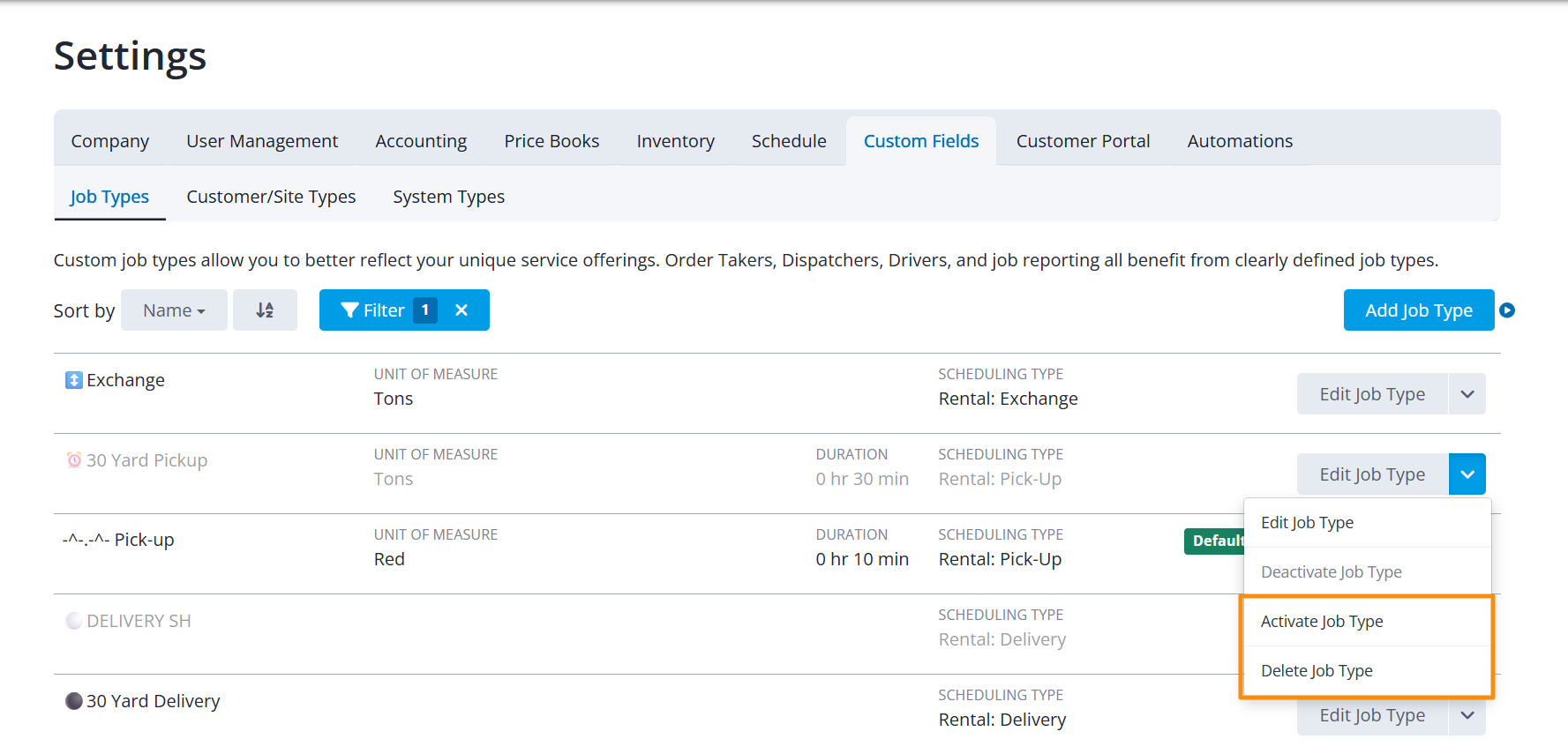
Your inactive job types will appear grayed out in your job types list. Use the down arrow in line with the inactive job type to edit, activate, or permanently delete it.
Next Steps:
If you have any questions, please reach out to our Support team through the chat widget on the bottom of this page or by sending an email to support@servicecore.com!